Free & open source · macOS · Windows · Linux

Speak in any language.
Paste clean text anywhere.

Press a hotkey and talk. RevFly transcribes on your own computer, translates only when you need it, tidies up the text, and pastes it straight into the app you're typing in.

brew install --cask eotsevych/tap/revfly

On a Mac: installs to Applications with no security prompt.

0 bytesof audio uploaded
On-devicespeech recognition, offline
Any appSlack, Docs, VS Code, Terminal…
MITfree and open source

Features

Everything you need to talk instead of type

Hotkey & voice pill

Press once to start, again to stop, on macOS, Windows or Linux. A tiny pill floats above every app, with Esc to cancel instantly.

On-device recognition

Parakeet or Whisper turn speech into text locally, after Silero VAD trims the silence. Nothing leaves your computer to transcribe.

Translation, only when needed

Translate only when you mean to: a second hotkey translates, the first keeps the language you speak. Or translate automatically whatever isn't in your target language. Gemini, Ollama, LM Studio, or any OpenAI-compatible endpoint.

Clean-up & confidentiality

Strips filler words and fixes corrections, formats numbers and dates, and masks names, emails and card numbers before anything reaches a cloud API.

History, storage & control

Keep text only, text + audio, or nothing at all. Switch mic, theme and translation mode from the tray, and re-run any recording in Audio Labs.

How it works

From voice to finished text in one keypress

  1. 1

    Press your hotkey

    Right ⌥ on a Mac, or any combo like Ctrl+Shift+Space. Press once to start and again to finish. Add a second hotkey to translate as you go.

  2. 2

    Transcribed on-device

    Silence is trimmed by Silero VAD, then Parakeet or Whisper turns speech into text locally, in memory.

  3. 3

    Translated only if needed

    Already in your target language? Translation is skipped instantly with no network call at all.

  4. 4

    Pasted where you type

    Clean, formatted text lands at your cursor with a simulated ⌘V / Ctrl+V, in any application.

Instant skip Same-language speech jumps from the language check straight to auto-paste.

Voice pill

Reading the voice pill

A small pill floats above your apps while RevFly works. It tells you what's happening at a glance.

ListeningIn your language

Bars move with your voice. The launch hotkey keeps what you say in your language. Press it again to finish, or Esc to cancel.

ListeningENTranslating to English

Started with the translate hotkey: teal, with the target language, until it's done. Automatic translation shows an outlined AUTO→EN badge instead.

TranscribingParakeet · on-device

Speech becomes text locally. Usually well under a second.

TranslatingUkrainian → English

Only when you asked for it: with the translate hotkey, or with Automatic when you speak another language.

✓
DonePasted

The text is at your cursor and in your history.

Reconnecting Mic…what you said is kept

The mic stopped sending sound. RevFly reopens it, or switches to the system mic.

Privacy by design

Your voice stays on your computer

Audio is recorded into memory and recognized locally. Nothing is uploaded. Only text is ever sent out, and only when you turn on a cloud translation provider. Use a local LLM and nothing leaves your machine at all.

Transcript only Default

Keeps transcripts in a local database. No audio is stored.

Audio + Transcript

Also keeps the recordings, so you can replay them or transcribe them again.

Don't save

Everything stays in RAM. Nothing is written to disk.

Guide

Set up RevFly in five minutes

Open Settings from the RevFly icon in your menu bar or system tray. Every setting has a sensible default, so this guide walks through what each one does and when you might want to change it.

  1. 1

    Install and open

    RevFly lives in the menu bar (macOS) or system tray (Windows, Linux). There's no main window to keep open.

  2. 2

    Allow permissions

    On a Mac, grant Accessibility for the hotkey and auto-paste. The microphone prompt appears on your first recording.

  3. 3

    Wait for the model

    The Parakeet speech model (670 MB) downloads on first launch. Progress shows in the tray menu.

  4. 4

    Press the hotkey and talk

    Press it again to finish. The text appears wherever your cursor is. Press Esc to cancel.

01 · General

System permissions

RevFly needs to hear your hotkey in any app and to paste text where you type. On macOS both depend on the Accessibility permission.
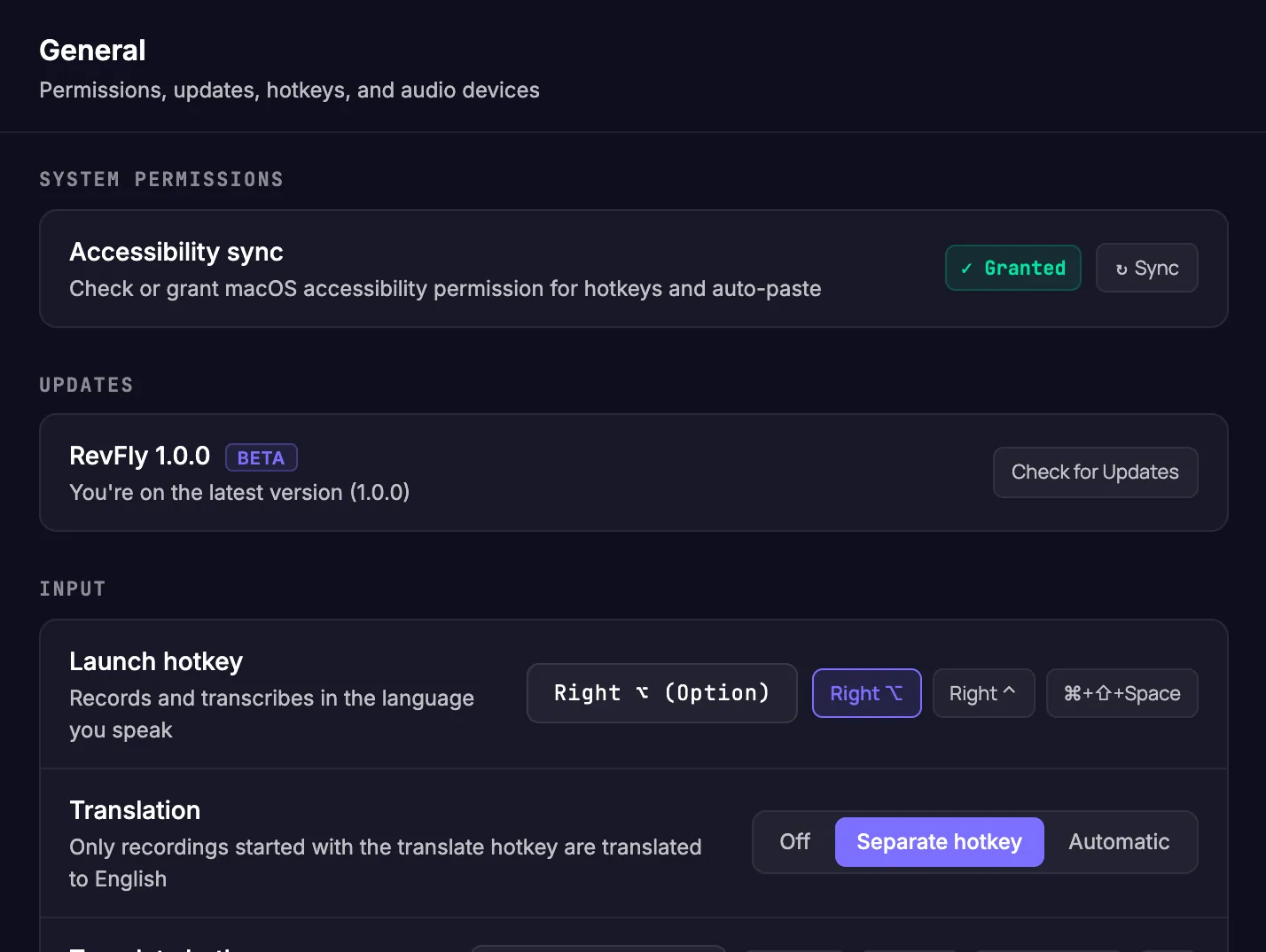
Accessibility
Click Sync. macOS opens Privacy & Security → Accessibility; switch RevFly on and the badge turns Granted. Without it, the hotkey and auto-paste won't work.
Microphone
Asked once, the first time you record. You can change it later in your system's privacy settings.
Updates
Shows your version. RevFly checks for new releases and installs them in one click.
RevFly Settings, General tab: System Permissions with Accessibility granted, and Updates showing RevFly 1.0.0 Beta

02 · General

Hotkeys and microphone

The Input section controls how you start a recording and what RevFly listens with.
Launch hotkey
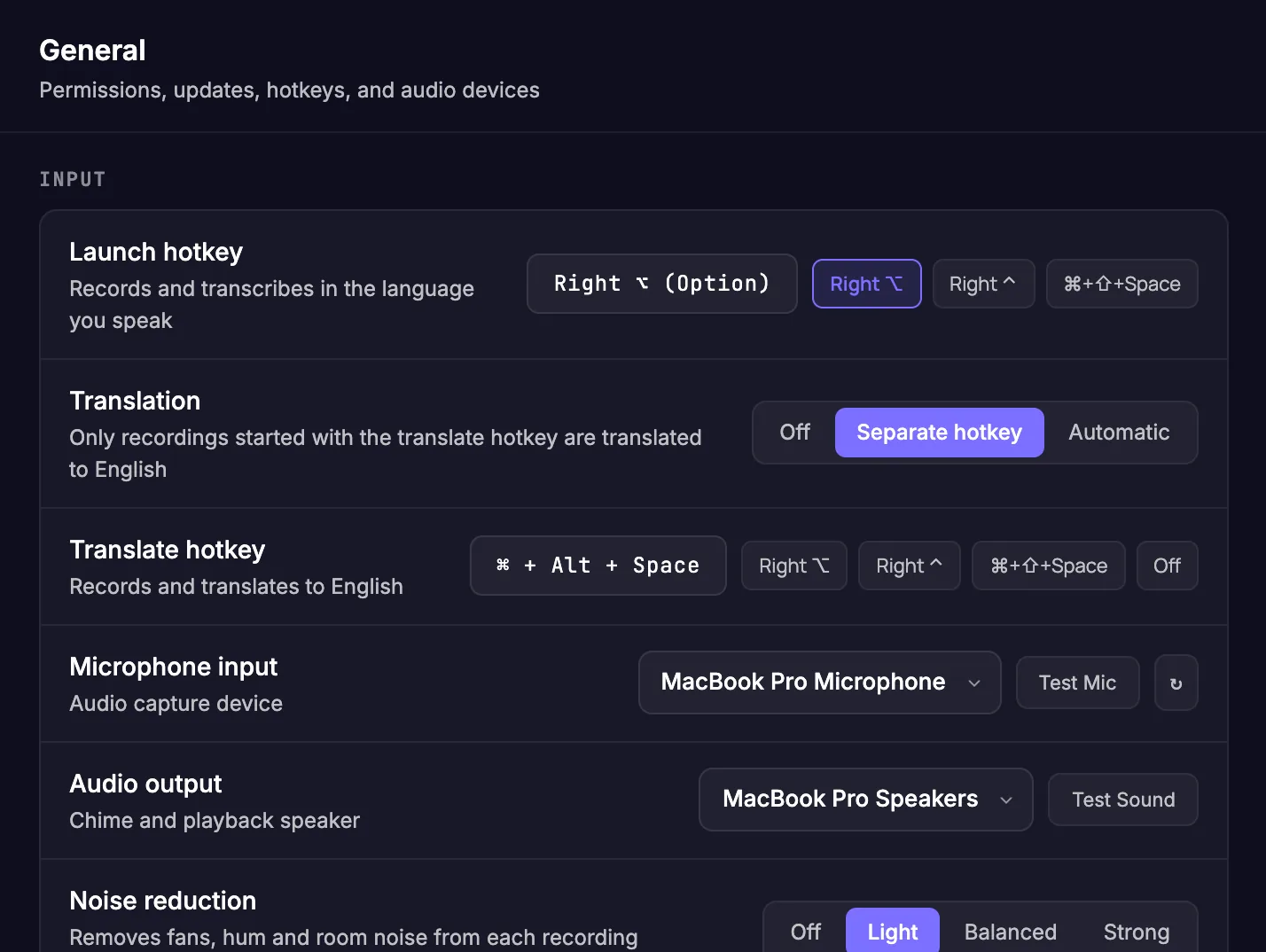
Starts and finishes a recording. When you finish, RevFly transcribes, translates if needed, and pastes. On a Mac, Right ⌥ works best: you almost never press it on its own, so it doesn't clash with other shortcuts. Press it once to start and again to stop.
Translate hotkey
Translation sets when RevFly translates: Off, Separate hotkey (the default) or Automatic. With a separate hotkey, the launch hotkey keeps the language you speak and the translate hotkey translates to your target language; the pill turns teal and shows the target, like EN. Automatic translates anything that isn't in the target language. Use another modifier key like Right ⌃ on a Mac, or a key combo on Windows and Linux. What you actually said is kept: open a translated recording with Second try in History to see and copy it.
Microphone input
Pick the device to record from. Test Mic plays it back so you can check the sound is clear and free of noise. If the mic drops out mid-recording, RevFly reconnects, or switches to the system mic if it was unplugged.
Audio output
The speaker for the start and finish chimes and for playing back recordings.
Noise reduction
Filters background noise (fans, traffic, keyboard) before recognition. Off, Light, Balanced or Strong. Try Light in a noisy room.
Open at login
In Behavior, below Input. RevFly starts when you log in, so the hotkey is always ready.
Input section: launch and translate hotkeys, microphone input with Test Mic, audio output and noise reduction

03 · Transcription

Speech model and languages

Recognition runs entirely on your computer. Pick the engine and tell it which languages to expect.

Transcription model
Parakeet TDT 0.6B is the default. It downloads on first launch and is very fast, with 25 languages. Whisper Base, Small and Medium download in one click; Medium is the most accurate.
Hardware acceleration
Auto uses your GPU or Neural Engine when there is one, which makes recognition faster and lighter. Without one, RevFly runs on the CPU alone.
Spoken language
Auto-detect by default. If you usually speak one language, select it: the model stops guessing, and results are more reliable.
Excluded languages
Languages you don't speak but that sound close to yours, for example Russian or Polish for a Ukrainian speaker. If one is detected by mistake, the speech is recognized again in your language.
Models folder & import
Open the folder where models are stored, import your own Whisper .bin file, or download one from a link.
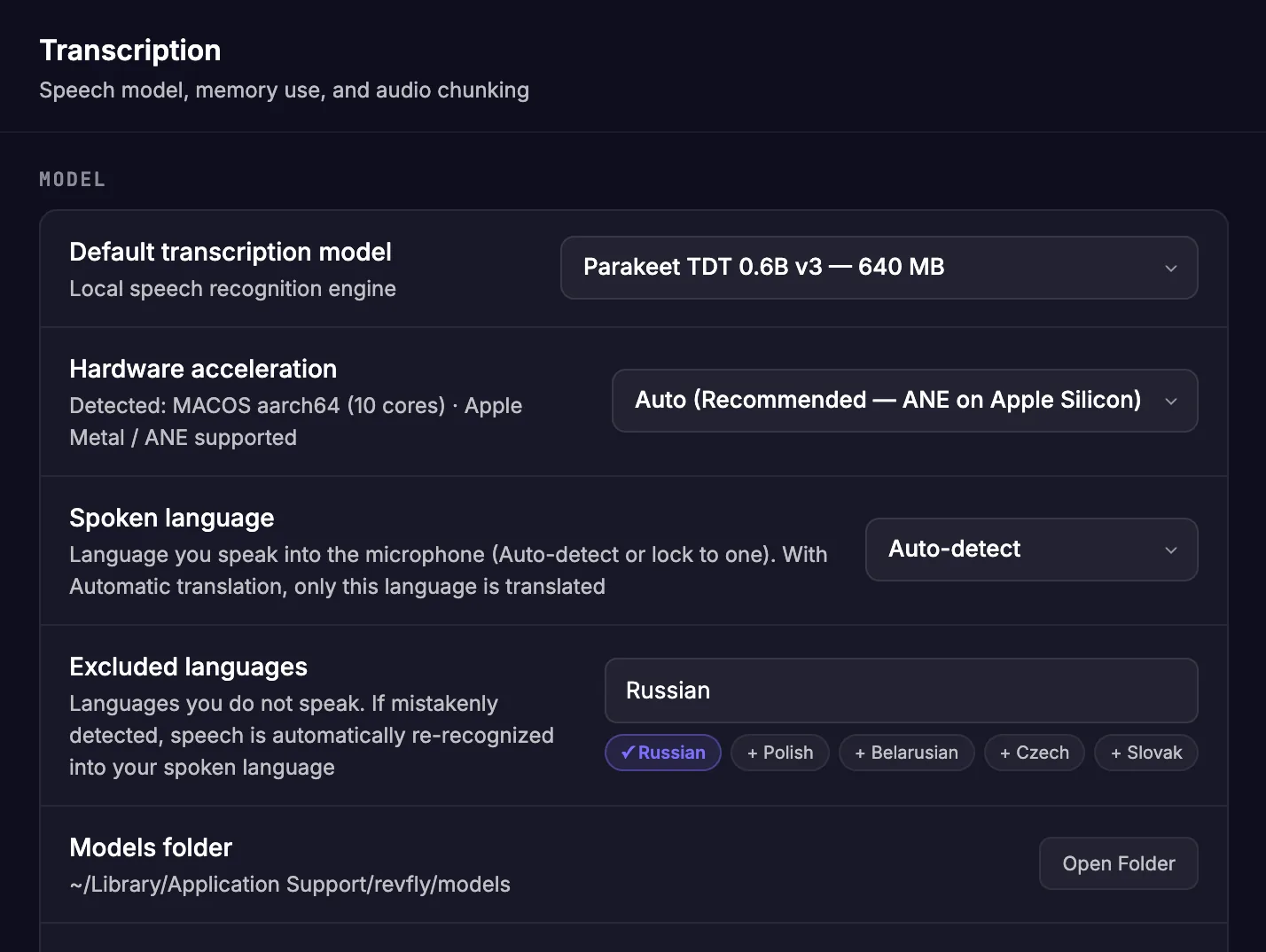
Model section: Parakeet TDT selected, hardware acceleration Auto, spoken language Auto-detect, excluded languages, models folder

04 · Transcription

Memory and long recordings

Choose how the speech model uses memory, and how long recordings are split so nothing is lost.
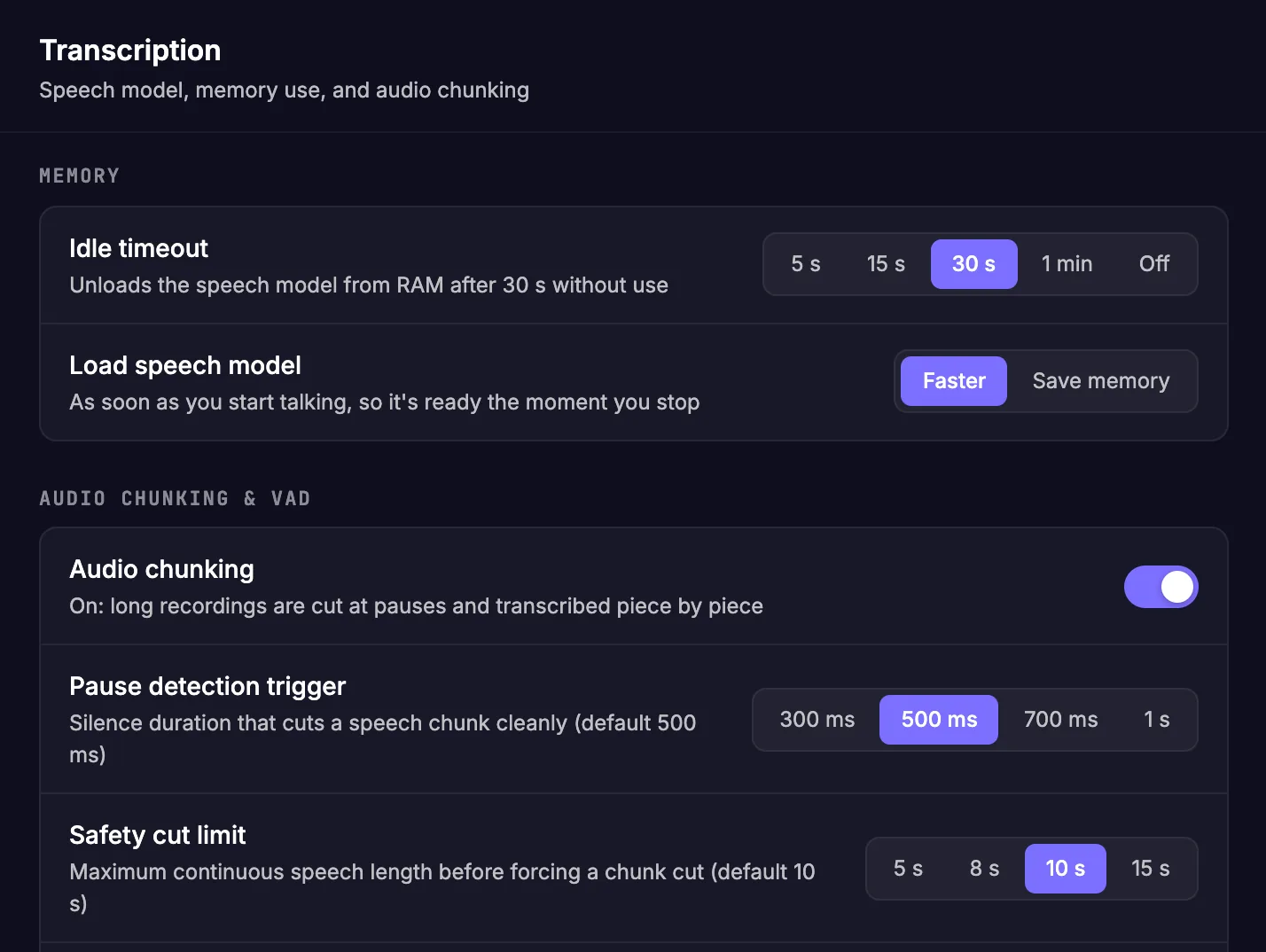
Idle timeout
How long the speech model stays in memory after you finish (30 s by default). After that it's unloaded, so RevFly uses almost no RAM while you're not dictating. It loads again automatically the next time you record.
Load speech model
Faster loads the model as soon as you start talking, so the text is ready the moment you stop. Save memory loads it after you stop and uses less RAM while you record.
Audio chunking
Not every model can take a long conversation in one go: Parakeet handles about 4 minutes 50 seconds at a time. Chunking splits the recording at natural pauses, so turn it on for long dictation. It's also faster: the parts you've already said are transcribed while you keep talking, so the text is ready almost as soon as you stop.
Pause detection trigger
How long a pause has to be to cut a chunk cleanly (500 ms by default).
Safety cut limit & overlap
If you talk without pausing, a chunk is cut after this many seconds. The overlap repeats a short slice so no word is cut in half.
Transcription tab: Memory with idle timeout and model loading, then Audio Chunking and VAD with chunking on, pause detection trigger and safety cut limit

05 · Text

Post-processing & formatting

Speech is messy. Normalization turns what you said into clean written text that reads well and that AI tools understand.
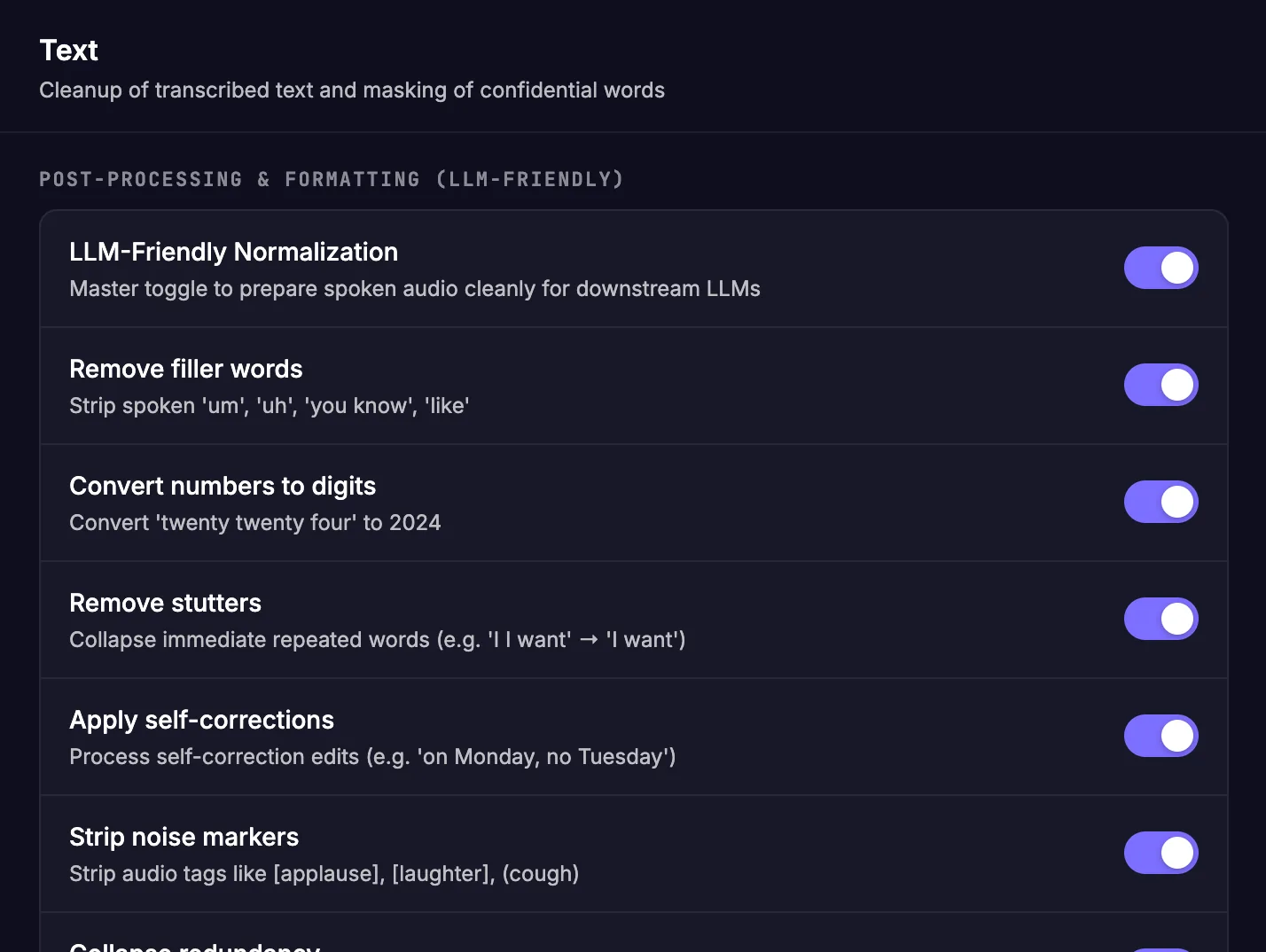
Fillers & stutters
Removes "um", "uh", and repeated words like "I I want".
Numbers & values
"Twenty four" becomes 24; currency, dates and percentages get a consistent format.
Self-corrections
"On Monday, no, Tuesday" becomes "On Tuesday".
Confidential masking
Further down, list names and codenames to hide. Emails, phone and card numbers are masked before text is translated or pasted.
Post-Processing and Formatting section: filler words, numbers to digits, stutters, self-corrections and more

06 · Translations

Translation

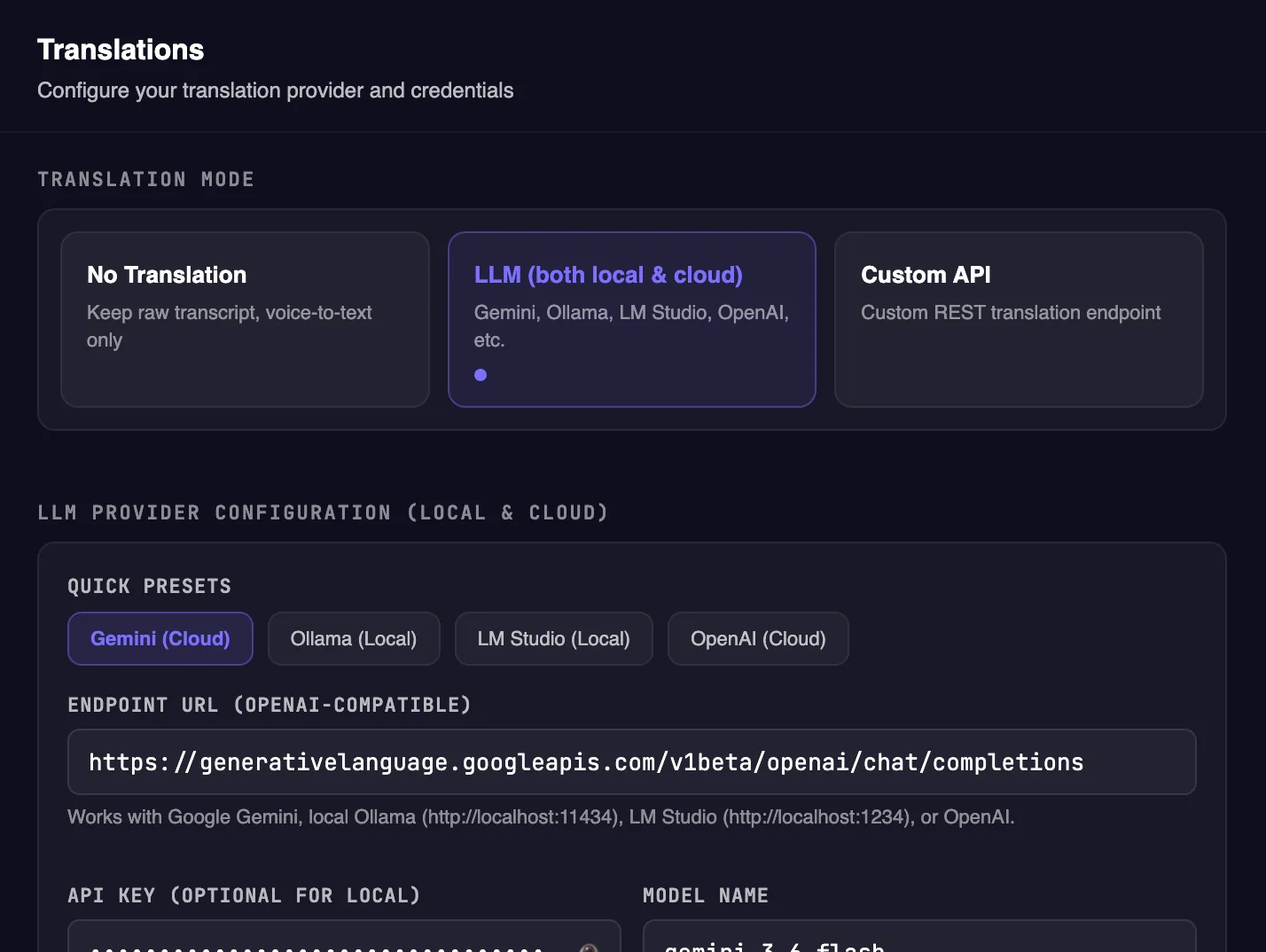
Speak your native language, or any language, and get the text in another one. Pick the target language; speech that's already in it is pasted without translating.

LLM, local or cloud
Presets for Gemini, OpenAI, Ollama and LM Studio. A free Gemini API key includes a number of free requests every day, and gemini-3.6-flash translates quickly and well. Ollama and LM Studio run on your computer, offline and without a key.
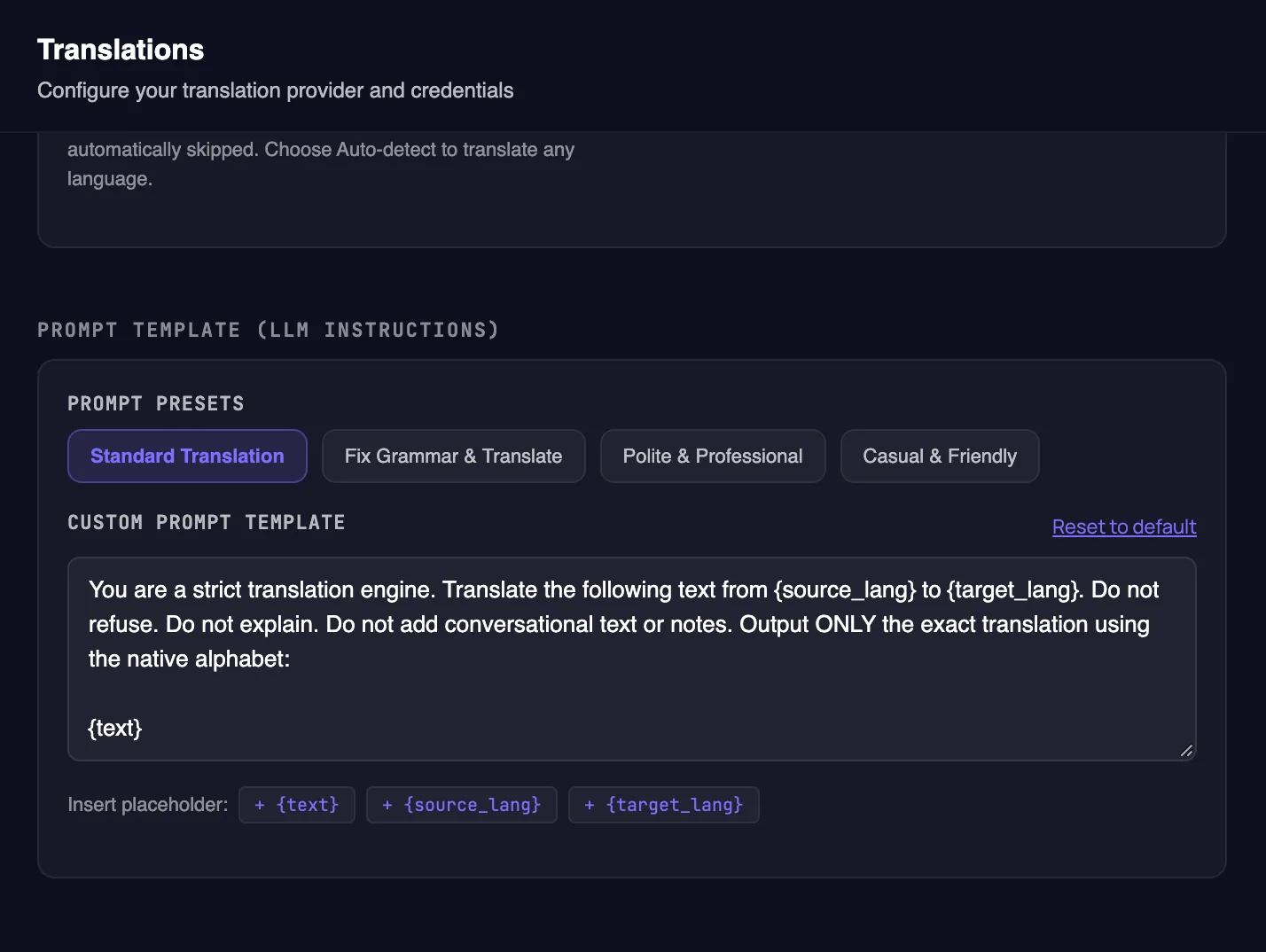
Prompt template
Tells the LLM what to do with your text. Besides translating, you can ask it to fix grammar or polish your phrasing.
Custom API
Any REST translation service. Several have free tiers, such as Google Cloud Translation.
If it fails
The pill shows the reason and a Retry translation button. The tray menu has Retry Last Translation too, so you never have to say it again.
Translations tab: translation mode and LLM presets for Gemini, Ollama, LM Studio and OpenAI Prompt template presets and custom prompt editor

07 · History

History and storage

Choose what RevFly keeps on your disk. Everything stays local.

Save format
Audio + Transcript, Transcript only, or Don't save (nothing is written to disk).
Storage cap & auto-purge
When the cap is reached, the oldest recordings are deleted first. Auto-purge removes anything older than the period you pick, or never.
Open folder
See your recordings as ordinary audio files.

Tip: keep audio on. A saved recording can be transcribed again later, as the next two sections show.
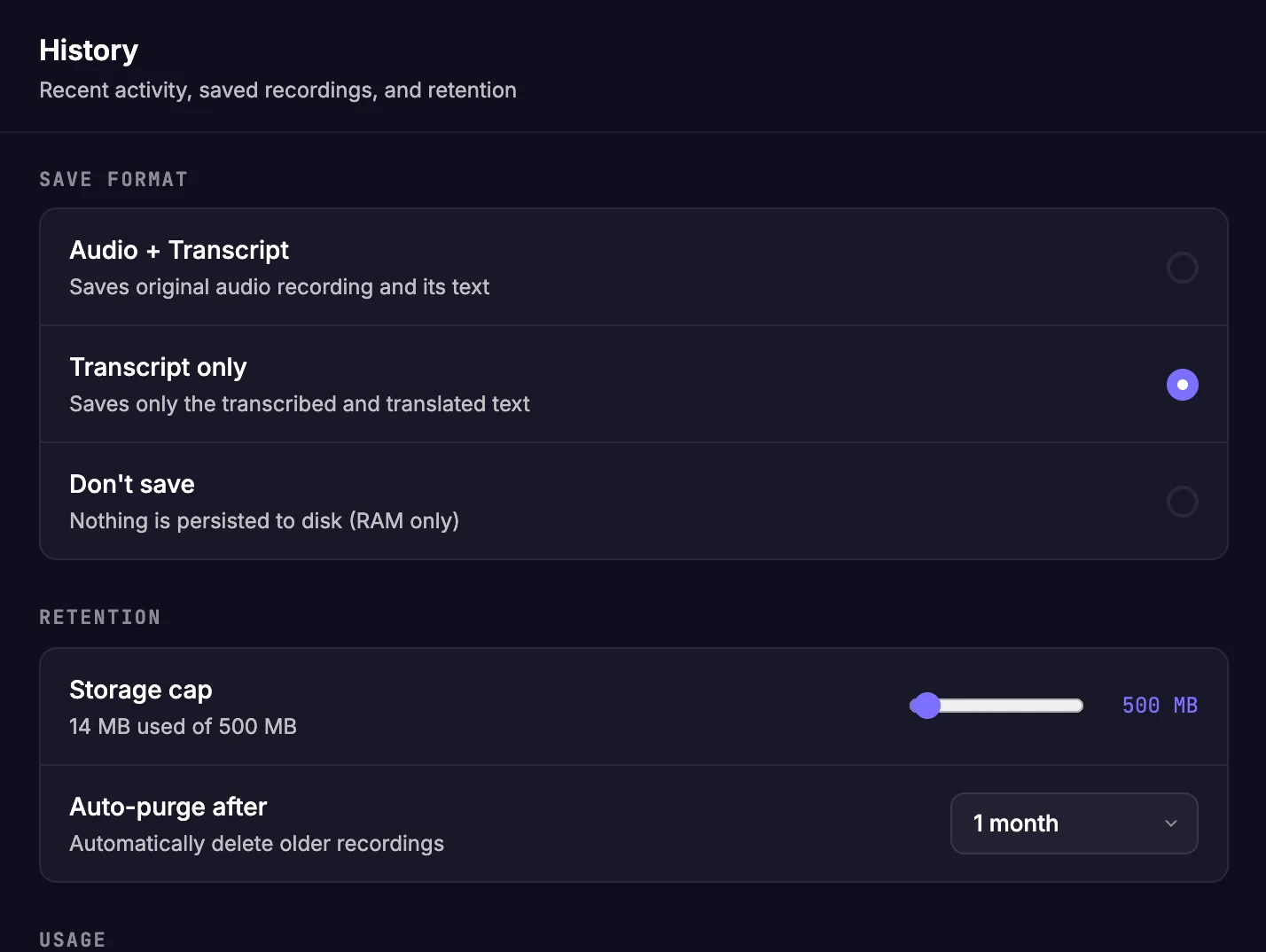
History tab: save format, storage cap and auto-purge

08 · History

Logs: see every step

Each recording gets a timeline of what happened to it and how long each step took.
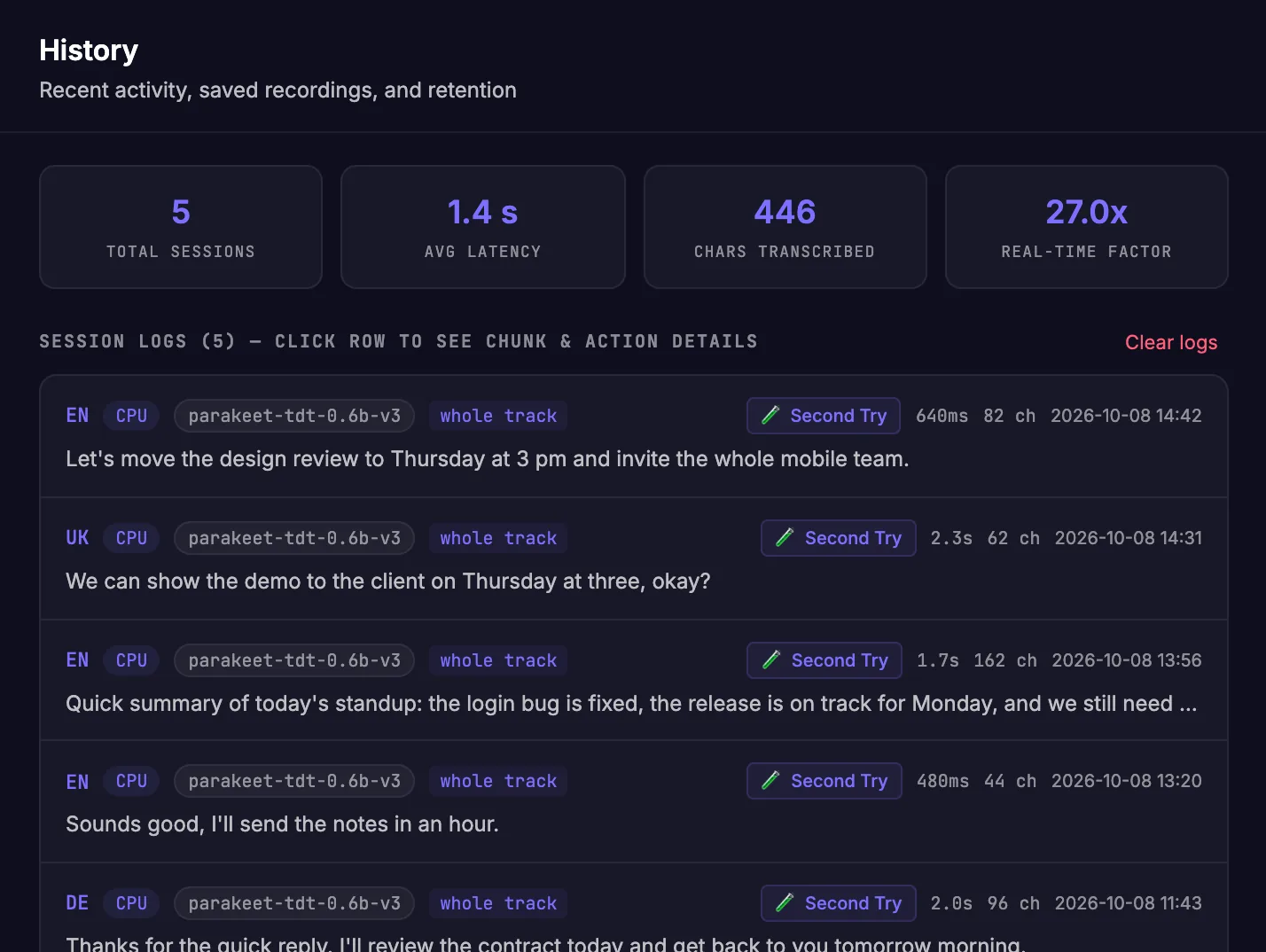
Speed
Silence trimming, recognition, translation and paste times, plus how many times faster than real time the model ran.
Text at each stage
The detected language, the raw transcript, and the final text that was pasted.
Second try
Play the recording back, or open it in Audio Labs to transcribe it again. For a translated recording, it also shows what you said, ready to copy.
History tab: session stats and recent recordings with timings, detected language and text

09 · Audio Labs

Audio Labs: test and re-run

A workbench for your real recordings. Pick a previous recording or drop in any audio file, then run it through different settings.
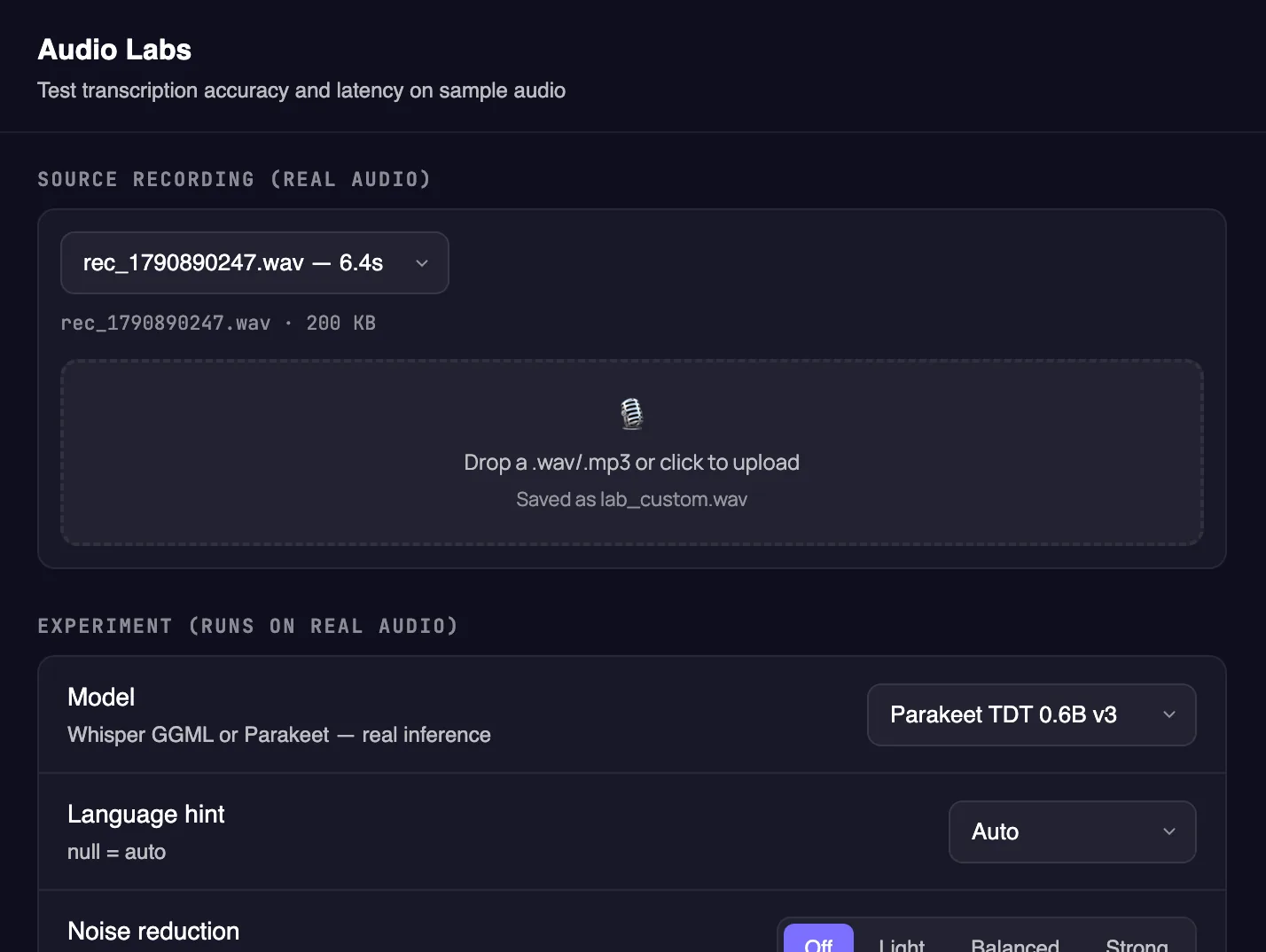
Compare settings
Try other models, languages, noise reduction and clean-up options, and compare the raw and cleaned text and the speed.
Recover a recording
Something went wrong, like the wrong language or a failed translation? Your recording is still there. Transcribe it again instead of repeating yourself.
Audio Labs tab: source recording and experiment settings

Download

Free for macOS, Windows and Linux

Latest release · All releases · Install guide

macOS

macOS 11+ · Apple Silicon & Intel

Install with Homebrew, no security prompt:

brew install --cask eotsevych/tap/revfly

Or download directly: .dmg (macOS asks you to confirm on first launch)

FAQ

Questions

Is RevFly really free?

Yes. It's open source under the MIT license, with no account, subscription or usage limits. Cloud translation with Gemini uses your own API key; local models cost nothing.

Does my audio ever leave my computer?

No. Recording and speech recognition happen locally. If you enable cloud translation, only the recognized text is sent, after the confidentiality guard has masked anything sensitive. With a local LLM, nothing leaves your machine.

Which languages does it understand?

Parakeet recognizes 25 European languages, including English and Ukrainian; Whisper models recognize dozens more, offline. Translation works between any languages your chosen provider supports, and speech that's already in your target language is pasted as-is.

The pill says my microphone stopped. What now?

Bluetooth headsets sometimes drop their microphone link mid-recording. RevFly notices within a second or two, reopens the mic and keeps what you already said. If the mic was unplugged, it switches to the system mic. If it keeps happening, pick another mic in Settings → General → Microphone input.

Why does my computer warn me when I open it?

RevFly isn't signed with a paid Apple or Microsoft certificate yet, so macOS and Windows show a one-time warning for downloads from a browser. The Terminal one-liner and Homebrew avoid it on Mac; the install guide shows how to allow it otherwise. Updates install from inside the app without the warning.

Which apps does it work with?

Any app with a text cursor: Slack, Telegram, WhatsApp, VS Code, Google Docs, Chrome, Terminal and more. RevFly pastes with the normal ⌘V / Ctrl+V shortcut. On Linux, an X11 session works best.